
With the addition to support the WHIP protocol in the open source production intercom solution, Open Intercom, the solution now supports bringing an external audio signal into an intercom call without requiring an extra audio hardware device.
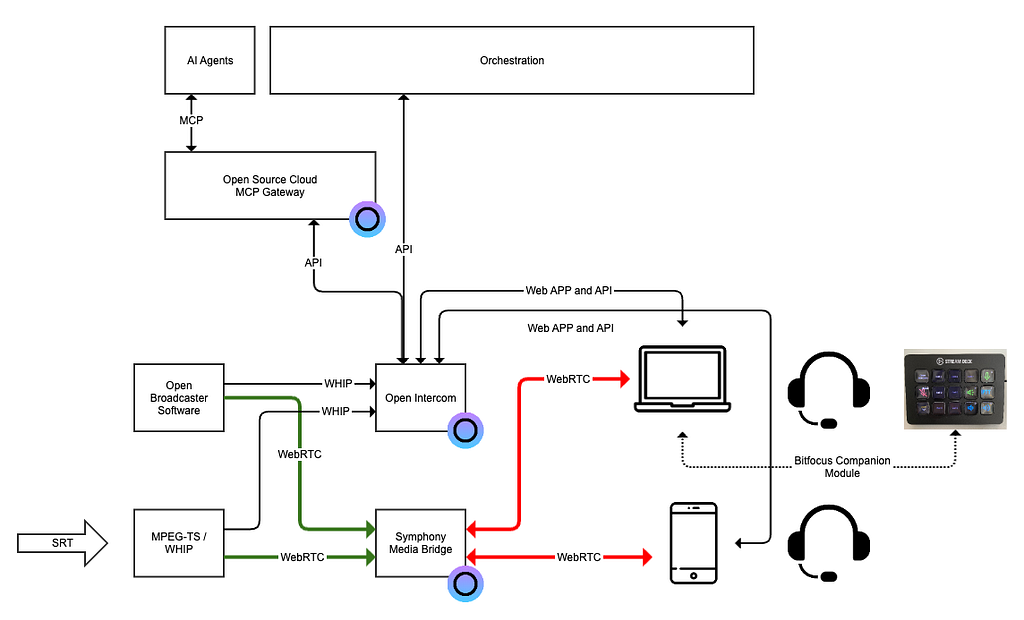
WebRTC-HTTP Ingest Protocol is a protocol designed for ingesting media into a WebRTC-based media service in a standardized way. With a growing support among broadcast software and media gateways we chose to implement this protocol as the interface for external (non human) audio signals to join a call.
This is one of the many features included in the latest release of Open Intercom that is now general available and available as an open web service in Eyevinn Open Source Cloud. This is the quickest and easiest way to get started with Open Intercom, and as it is open source you can bring it to your own facilities whenever you like.
In this blog we will walk you through how to get started with this new feature and we assume that you already have access to an Open Intercom solution. If not, follow this guide first on how to quickly setup your own Open Intercom solution with a few clicks of a button.
Bring an external audio signal to your call
Join a call in the Intercom web user interface.
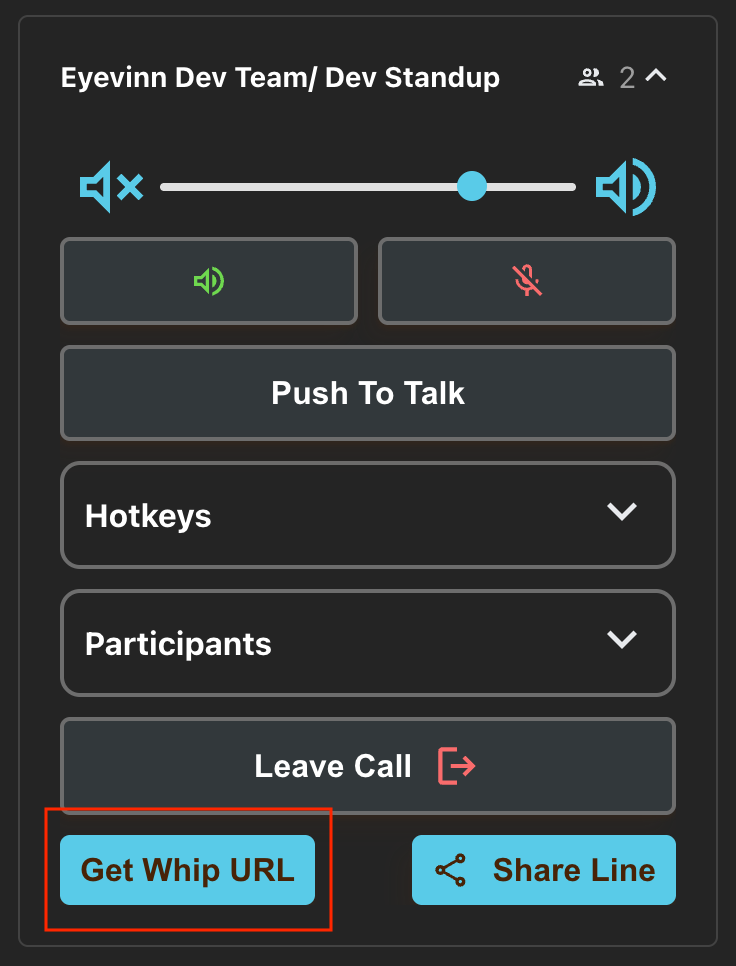
- Press the ‘Get WHIP URL’-button located at the bottom left on each call.
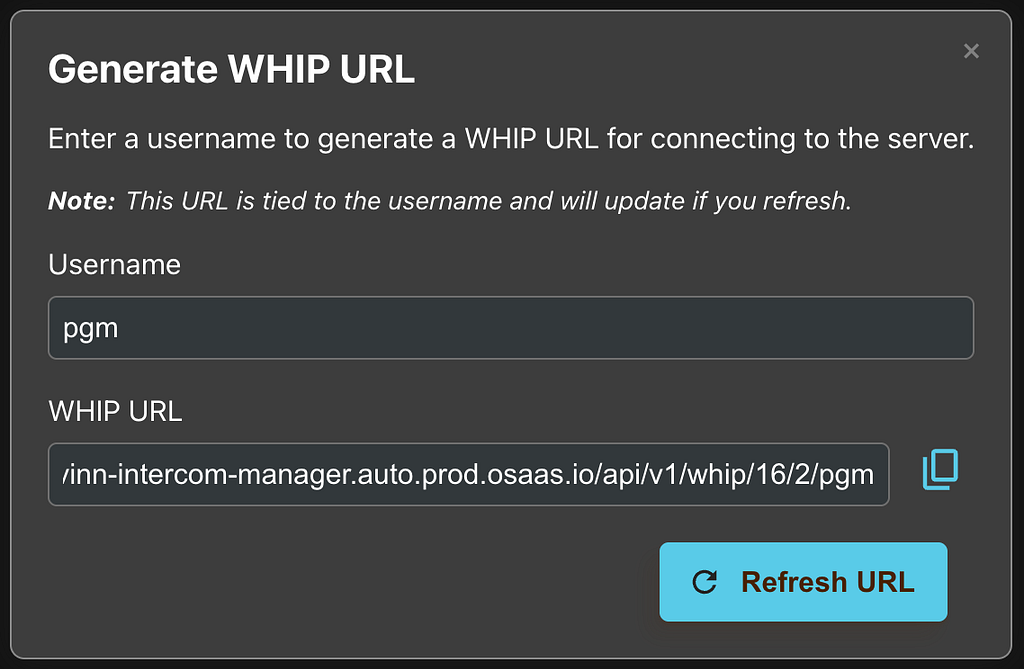
- Then, enter a descriptive username for the WHIP session. The username will be shown in the participant list of the call.
- Then, copy the generated URL. In this example, I have decided to call my WHIP session ‘pgm’.
Open Broadcaster Software (OBS)
In this guide we will use the popular Open Broadcaster Software (OBS) to be the source of this audio signal.
Open OBS and go to “Settings”
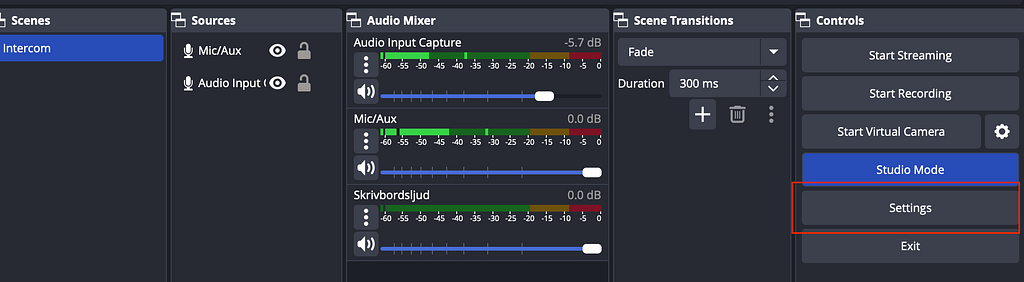
- From there, select “Stream” in the navigation menu on the left side.
- Then, in the dropdown labelled “Service”, select WHIP.
- In the “Server” input field, paste the WHIP URL you copied in the Open Intercom web user interface.
- Press “Apply” followed by “OK” to apply your settings.
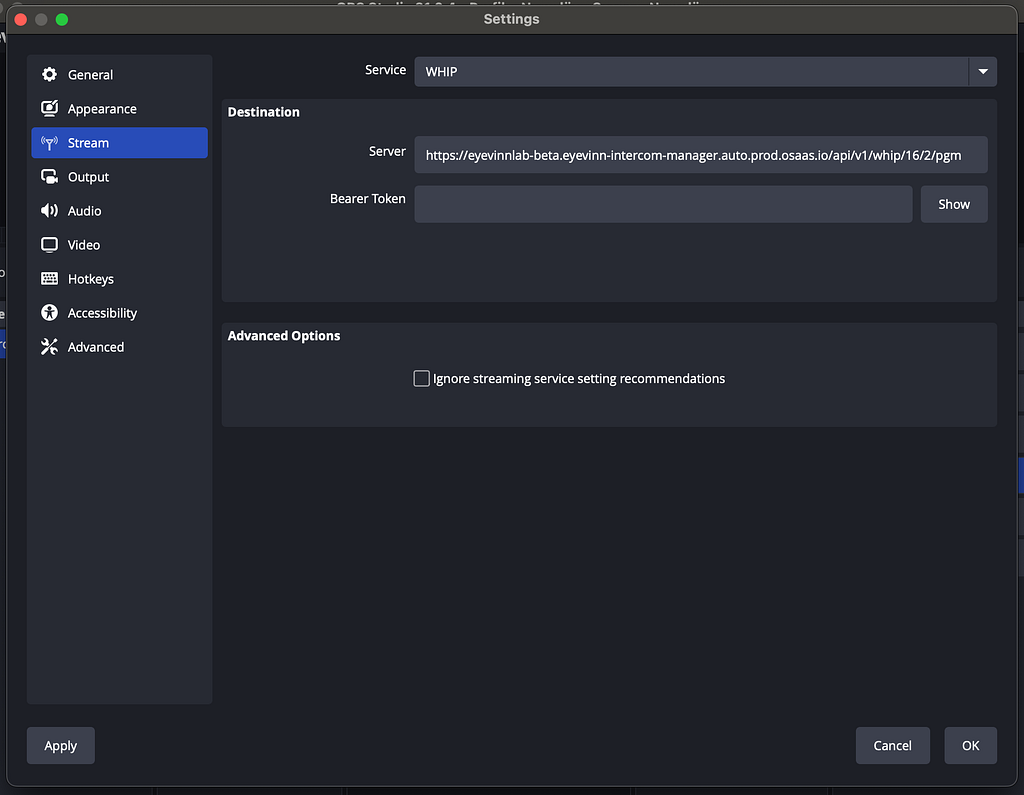
When ready, press “Start Streaming”.
You should see this audio source in the participant list of the call you are in shortly. It will show up with the name you previously entered in the “username” field when generating the WHIP URL.
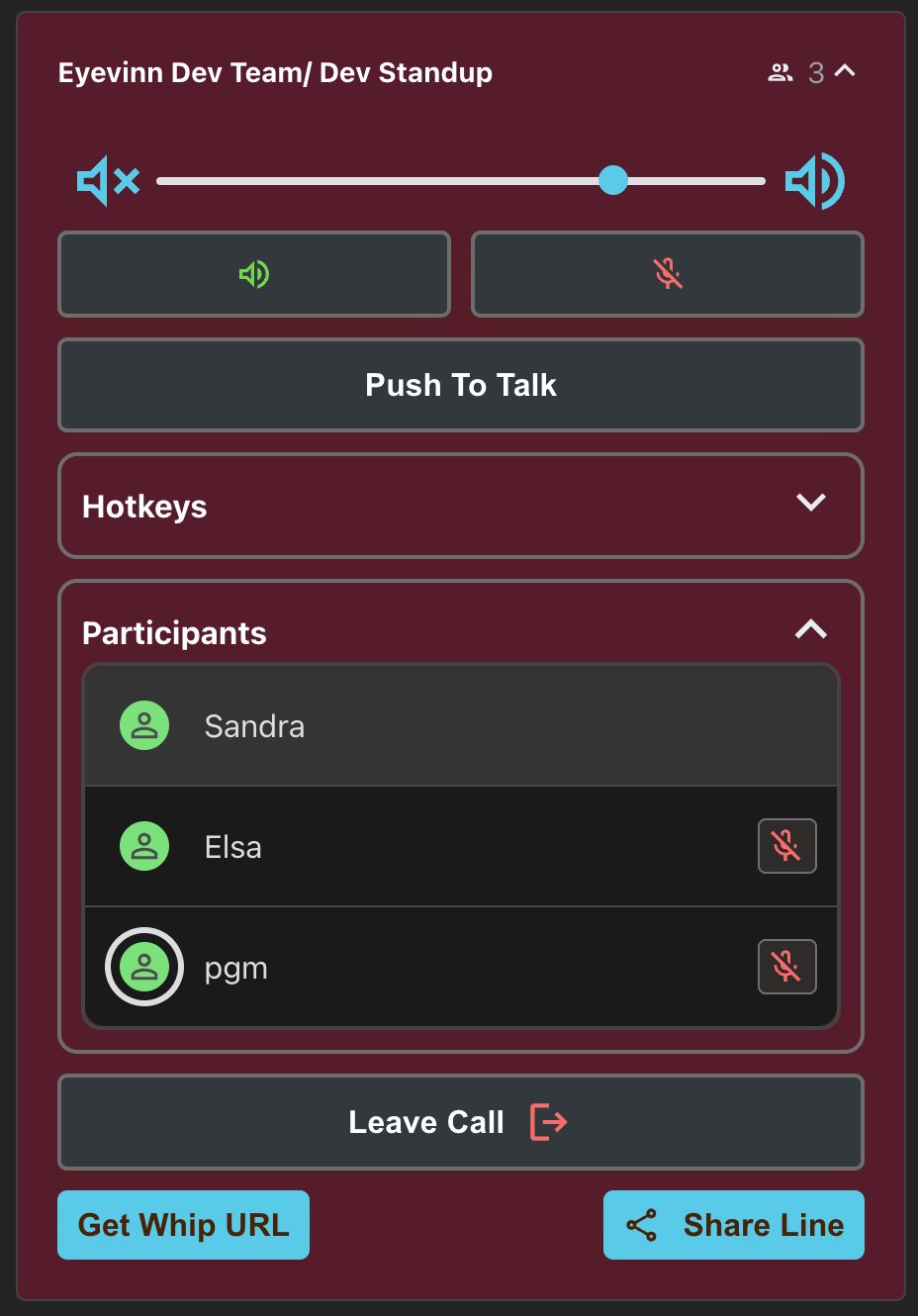
If you press “Stop Streaming” in the OBS UI, this audio source will disappear from the call’s participant list.
Built for the Way You Work Today
With the rise of remote production, Open Intercom aligns with how modern teams want to work: distributed, flexible, and efficient. This setup demonstrates how you can integrate external audio sources with this browser-based intercom without compromising audio quality or reliability.
And because it’s open-source, Open Intercom can be tailored to your needs — hosted on your own infrastructure, extended with custom features, or integrated with your control UIs and production logic.
Whether you’re looking to augment your current system or replace it entirely, Open Intercom is built for broadcasters who value flexibility, quality, and control — without the cost or constraints of traditional intercom hardware.
Interested in trying Open Intercom in your setup? Sign up for free at Eyevinn Open Source Cloud and launch your own instance with a few clicks of a button. Explore, experiment or get in touch with us at sales@eyevinn.se for support and custom integration options.